Blog
-
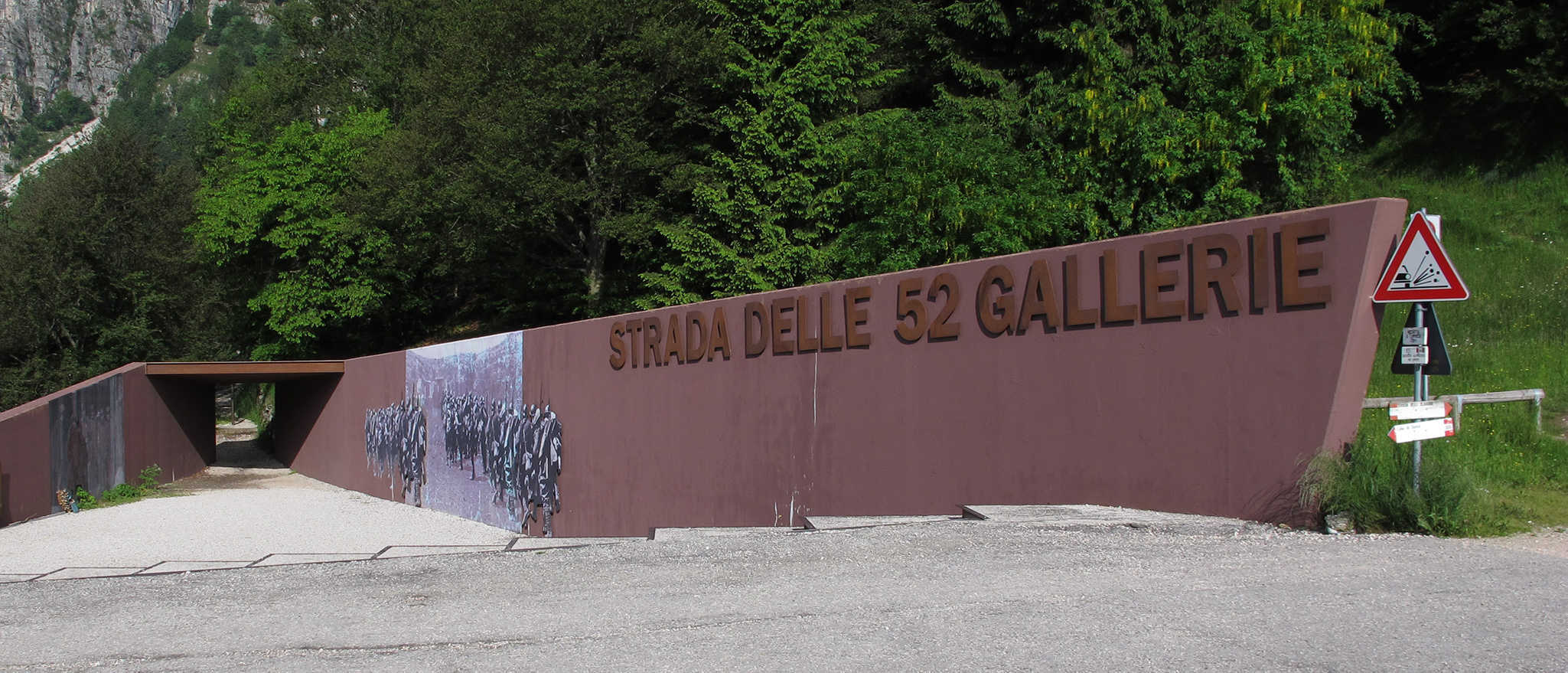
Strada delle 52 Gallerie
Es gibt Wanderwege und Wanderwege. Ok, das hilft so nicht weiter. Es gibt Wanderwege und Herausforderungen, ja, das ist besser. Die Strada delle 52 Gallerie zähle ich zu der zweiten Gruppe. Auf einer Länge von 6,5 km geht es mit ca. 800 m Höhenunterschied zunächst nach oben – die gleiche Strecke geht es dann auch wieder zurück. Ob das bereits…
-
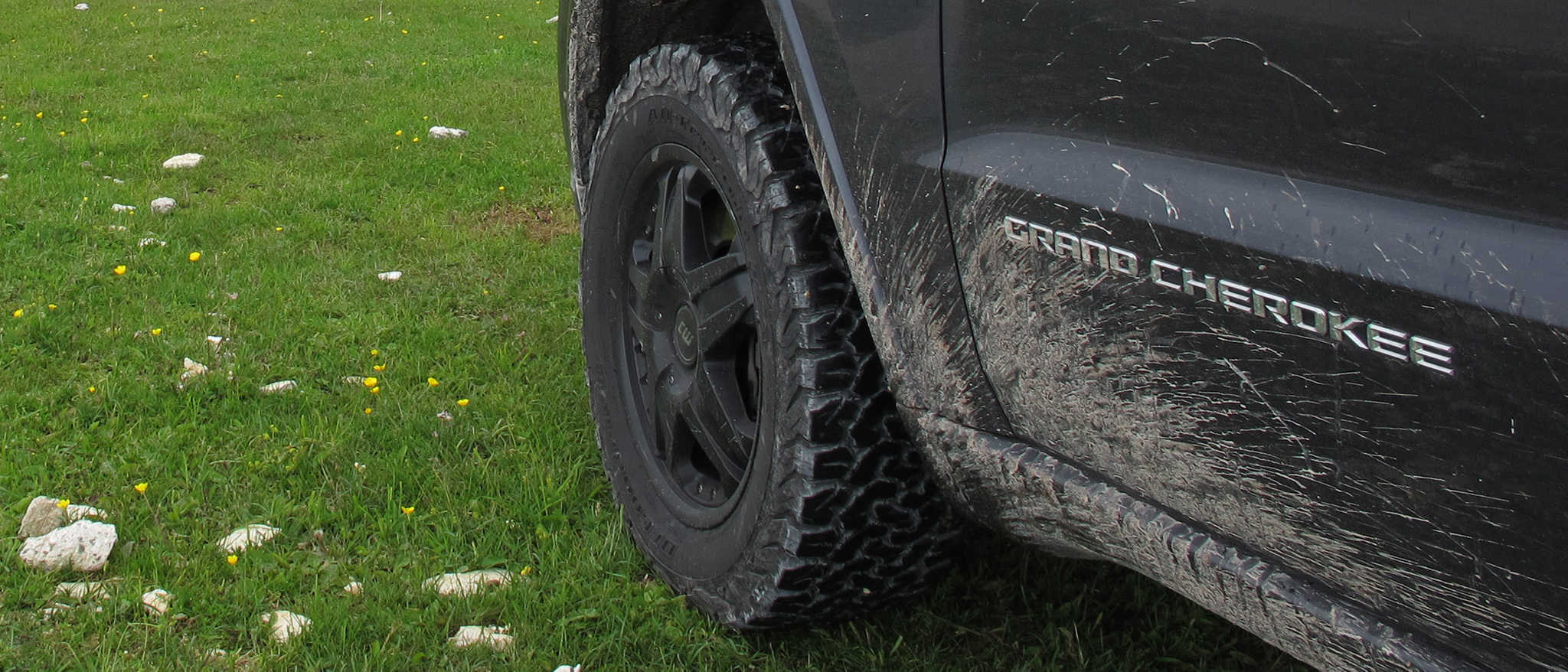
ADAC Offroad-Training Lüneburg
Bei dem 4×4 sollte man ähnlich wie bei Tieren auf artgerechte Haltung achten. Auch wenn ein Jeep Grand Cherokee im Innenraum den wohnlichen Charme eines Oberklasse-SUVs versprüht, mit seinen Sperren, dem Untersetzungsgetriebe und der dank Luftfederung beachtlichen Bodenfreiheit will er die Straßen verlassen. Und wenn nicht er, dann der Fahrer, oder zumindest ich. Darum wollte ich ihn ja, Städte sieht…
-

Uconnect Update für den Jeep Grand Cherokee
Besitzer neuerer Jeep Grand Cherokee’s wissen: ein aktueller Smart TV bietet weniger Einstellungsmöglichkeiten als das Uconnect System im Jeep. Wer sich entschieden hat, ob und wenn ja wie lang sich die Scheinwerfer nach welchem Ereignis einschalten sollen, wie viel Toleranz der Fahrer wünscht, bevor eine Damenstimme auf eine Diskrepanz zwischen der Fahrzeuggeschwindigkeit und den Schildern am Straßenrand hinweist und ob…
-
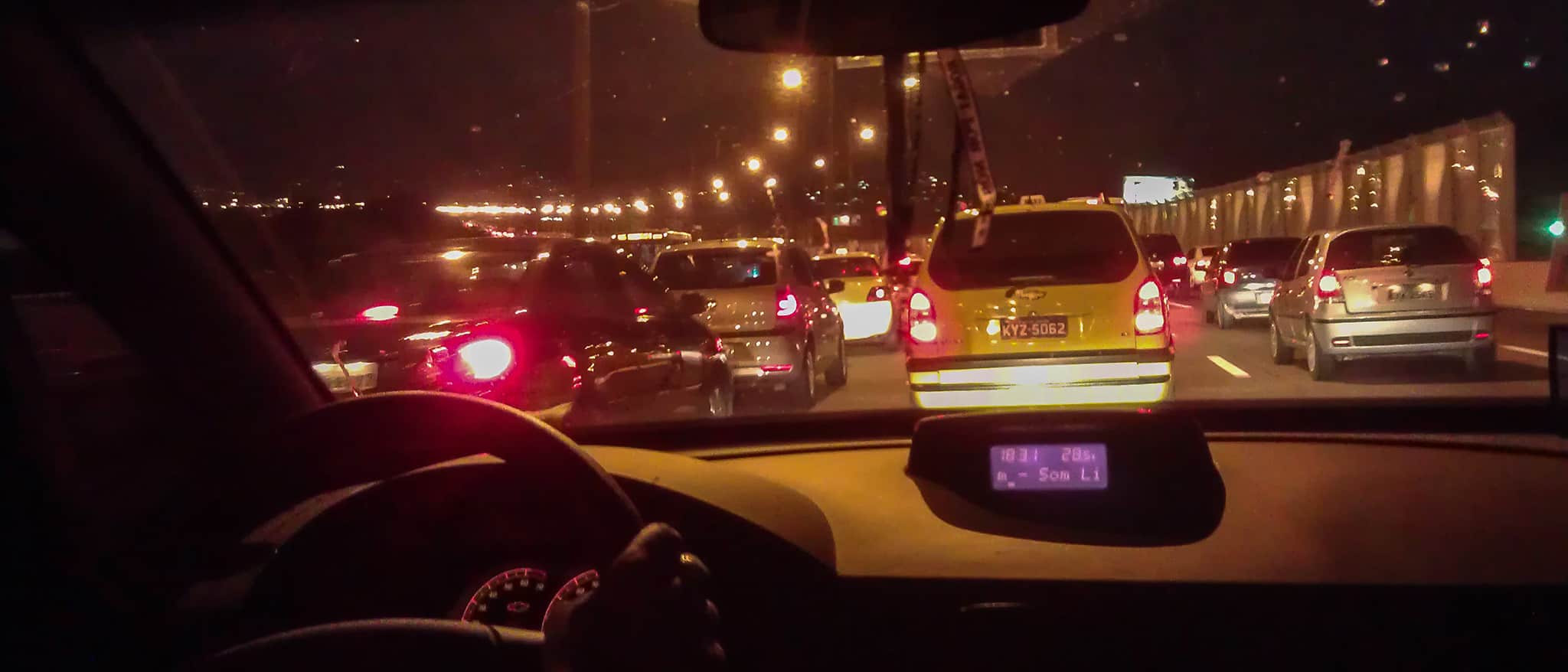
Shopping im Berufsverkehr
Rio de Janeiro, im Taxi auf dem Weg ins Hotel. Vier Spuren gen Süden, vier in nördlicher Richtung, keine leer. Schwüle 29 Grad draussen, gefühlte 12 Grad im Wagen. Ich mag keine Klimaanlagen, hier vielleicht doch. Aus den Lautsprechern schallt Musik aus den 80er Jahren, mit 96 kbps kodierte MP3s.
-
Rolltec goes Oventrop
Wenn ich mir anschaue, wieviel Besucher über die Suche auf meinen ersten Rolltec-Artikel stossen, scheint es so einige zu geben, die eine Fußbodenheizung von diesem Hersteller haben und nach dem Verschwinden des Herstellers Ersatzteile suchen. Soviel zur Motivation für diesen Beitrag. Vor einiger Zeit hatte sich wieder einmal ein Stellmotor am Fußbodenheizungsverteiler in die ewigen Jagdgründe verabschiedet. Der Ausfall fiel…
-

Gesucht, gefunden: ADAC Top-Training
Montag morgen, 07:30 Uhr, der Wecker klingelt mitten in der Nacht. Dieses Mal störte er mich nicht, ich war bereits wach. Es ist schon verblüffend, wie schnell ich morgens wach werde, wenn der Tag dem Mopped gehört. An diesem Montag stand nun endlich das ADAC Motorrad Top-Training auf dem Programm: ein zwei-tägiges Sicherheitstraining beim Fahrsicherheitszentrum Berlin/Linthe, dass ich bereits 2008…
-
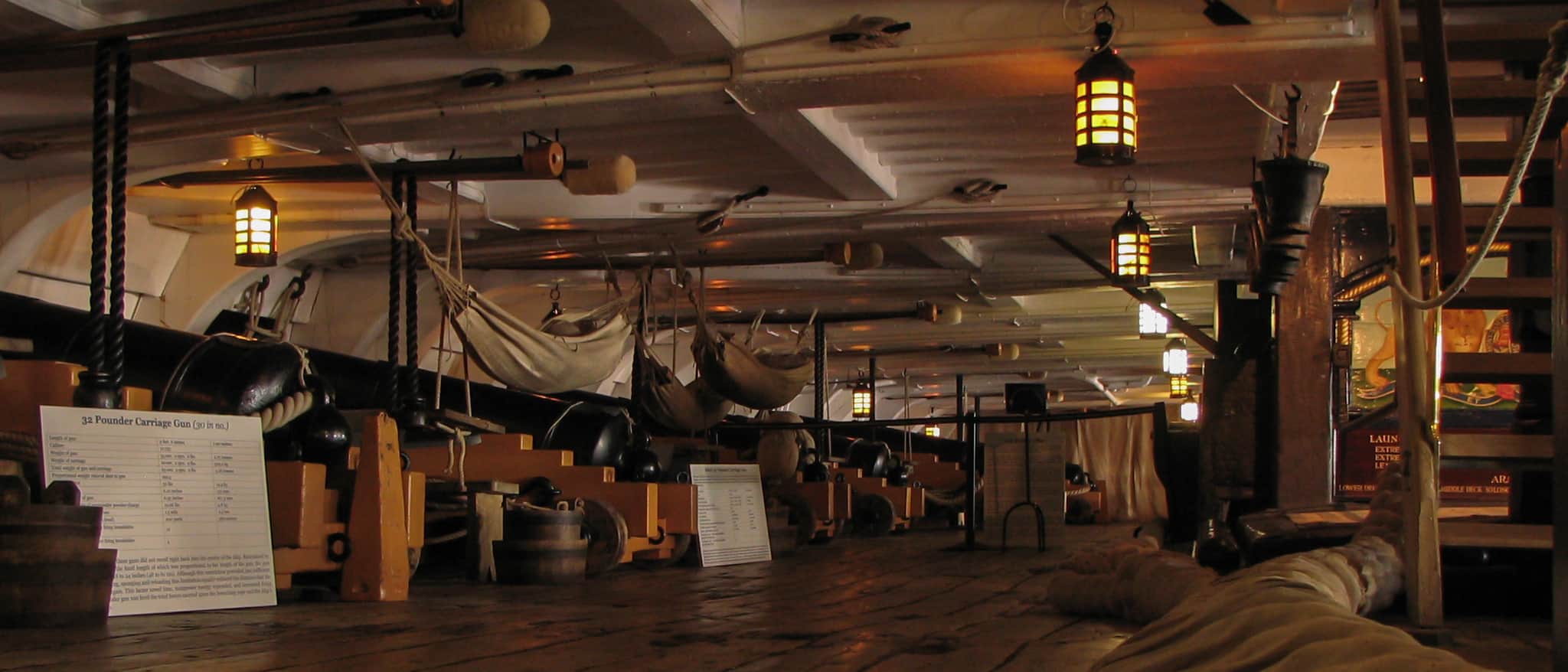
Portsmouth Historic Dockyard
Falls jemand zufälligerweise in der Nähe von Portsmouth ist und sich für alte Schiffe aus einer Zeit interessiert, in der Männer noch Männer sein durften, sich mit Kanonen beschossen und dafür auch noch von einem Kaiser oder einer Königin gelobt wurden, zumindest wenn sie als Sieger zurück kamen, dem empfehle ich unbedingt einen Besuch des Historic Dockyard. Der Eintritt für…
-
Eine Stunde mit der Triumph Sprint ST
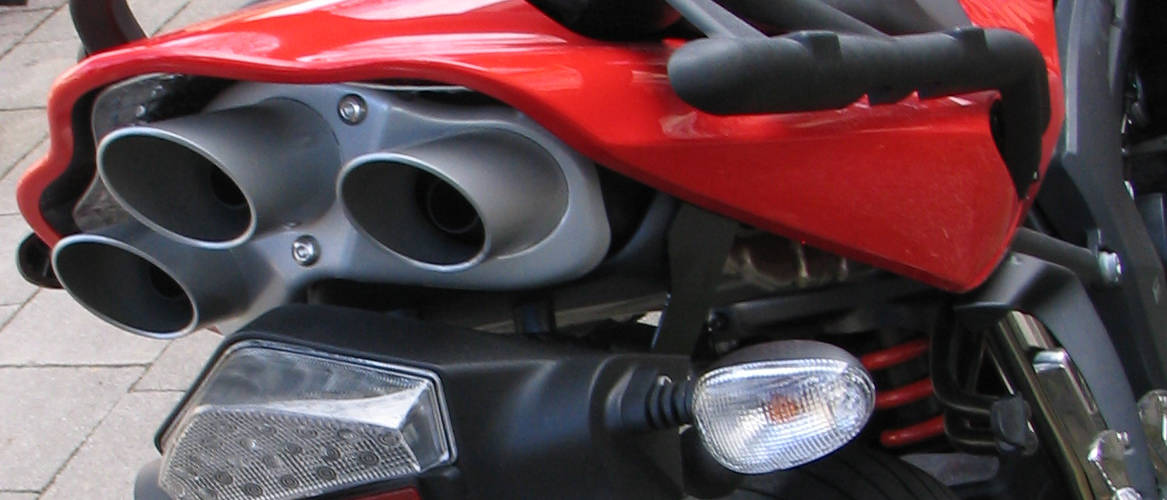
Sollte ich je Zweifel gehabt haben, dass mir eine Maschine aus dem Sporttourer-Segment am besten zusagt, wären diese in den letzten zwei Jahren, in denen ich mit der GSX750F ungefähr einmal die Erdkugel umrundet habe, weggeblasen worden. Wenn ich ab und zu nach einem potentiellen Nachfolger schiele, stammt dieser aus dem gleichen Bereich – z.B. die Triumph Sprint ST. Der…
-
Rolltec 1795 == Möhlenhoff AA 2004
Nur für den Fall, dass jemand eine Fußbodenheizung von SST-Rolltec hat; vor dem Problem steht, dass ihm ein oder mehrere Stellantriebe vom Typ Rolltec 1795 kaputt gegangen sind und er bei seinen Internet-Recherchen feststellt, dass es diese Antriebe nicht mehr zu geben scheint. Der Rolltec 1795 ist ein 230V Antrieb (das ist noch einfach) vom Typ “stromlos geschlossen” (empirisch ermittelt;…
-
Der Sound einer Megacity
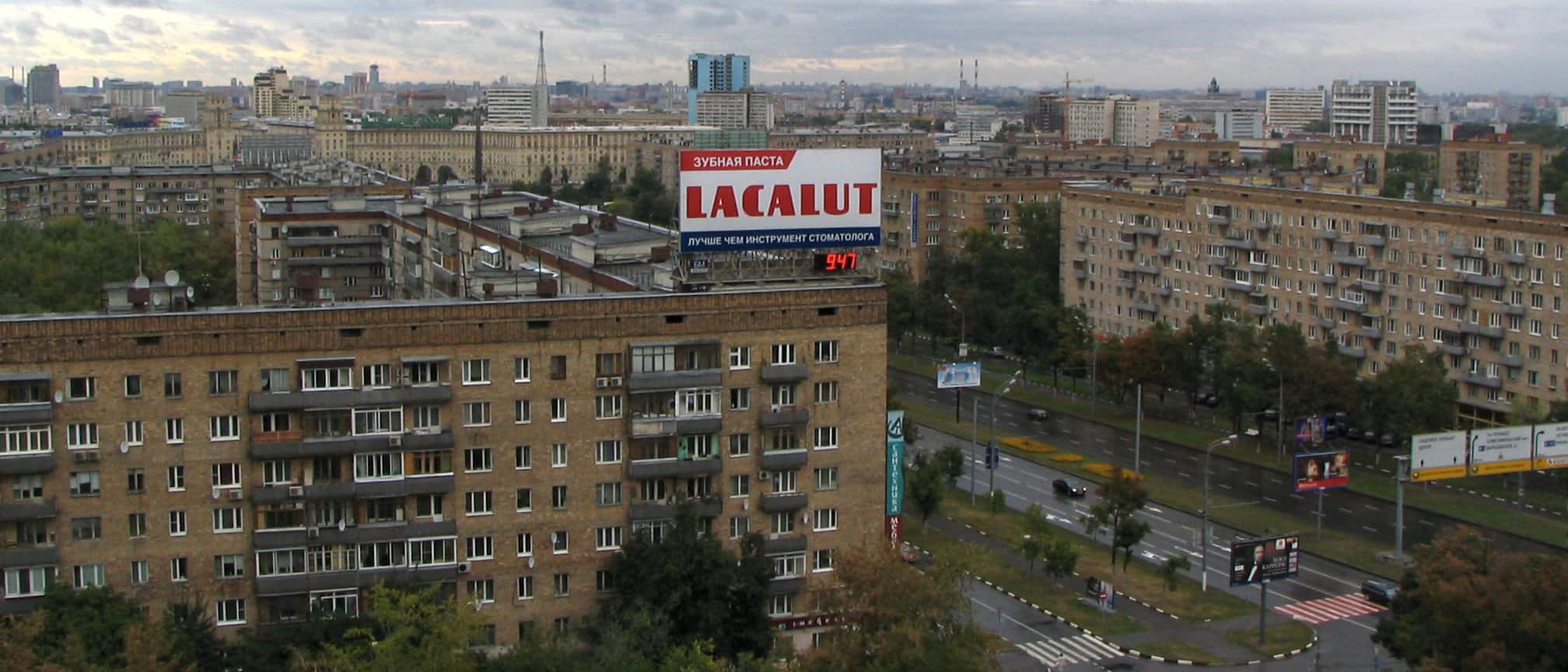
Der Stadtverkehr in Moskau ist ein Erlebnis für sich. Einbahnstraßen mit bis zu 10 Spuren, die anderen Straßen haben auch schon mal 14 oder 16 Fahrstreifen. Abgesehen von den Zeiten des Berufsverkehrs, in denen eh alles steht, spielen Tempolimits keine große Rolle. Generell gilt im Stadtbereich Tempo 60. Gefahren wird, wenn der Verkehr es zuläßt, auf den größeren Straßen zwischen…
-
Route des Grandes Alpes
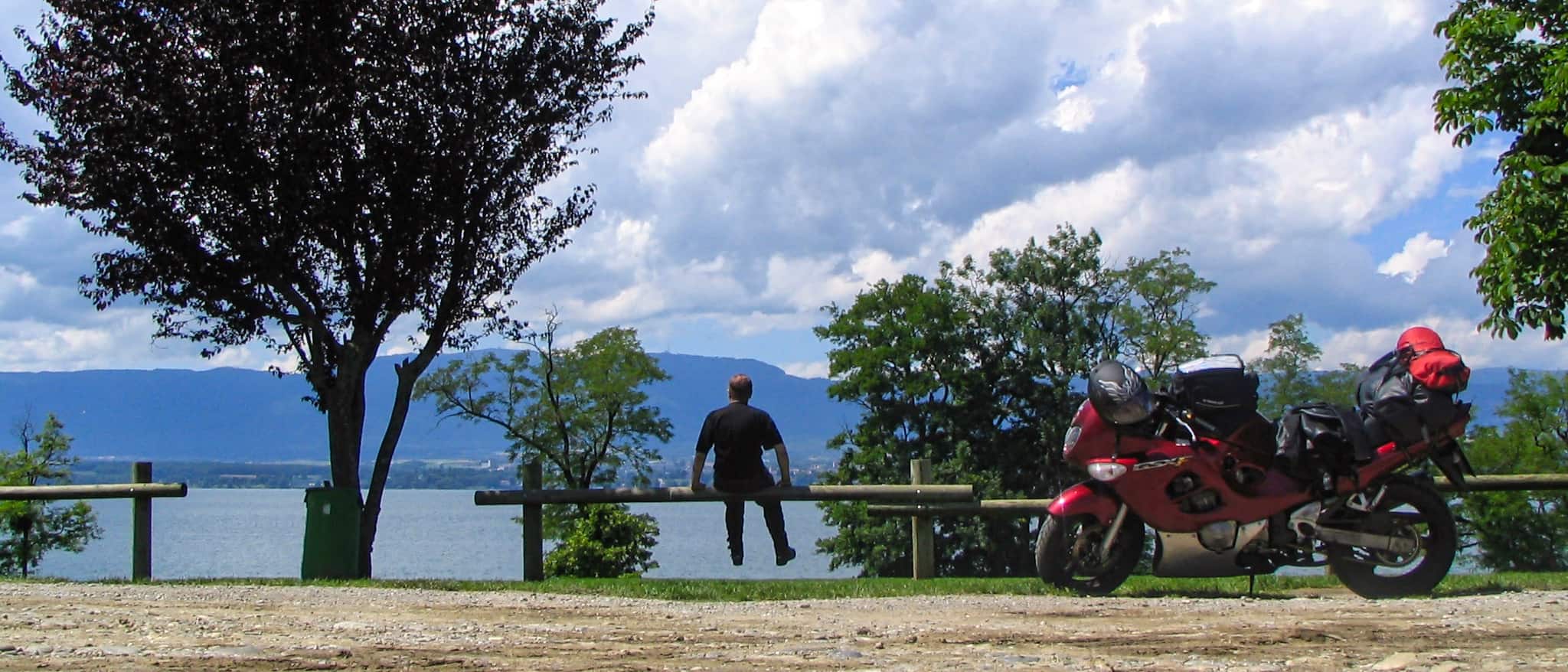
Die Route des Grandes Alpes. Es ist eine Route über die Alpen, das war mir schnell klar – es ist die Route über die Alpen, sagen viele. Es heißt, sie wäre die Königin der Alpenstraßen. Sie führt von Thonon-les-Bains im Süden des Genfer Sees bis Menton an das Mittelmeer. Knapp 700 Kilometer über 15 Pässe, der höchste davon erreicht fast…